
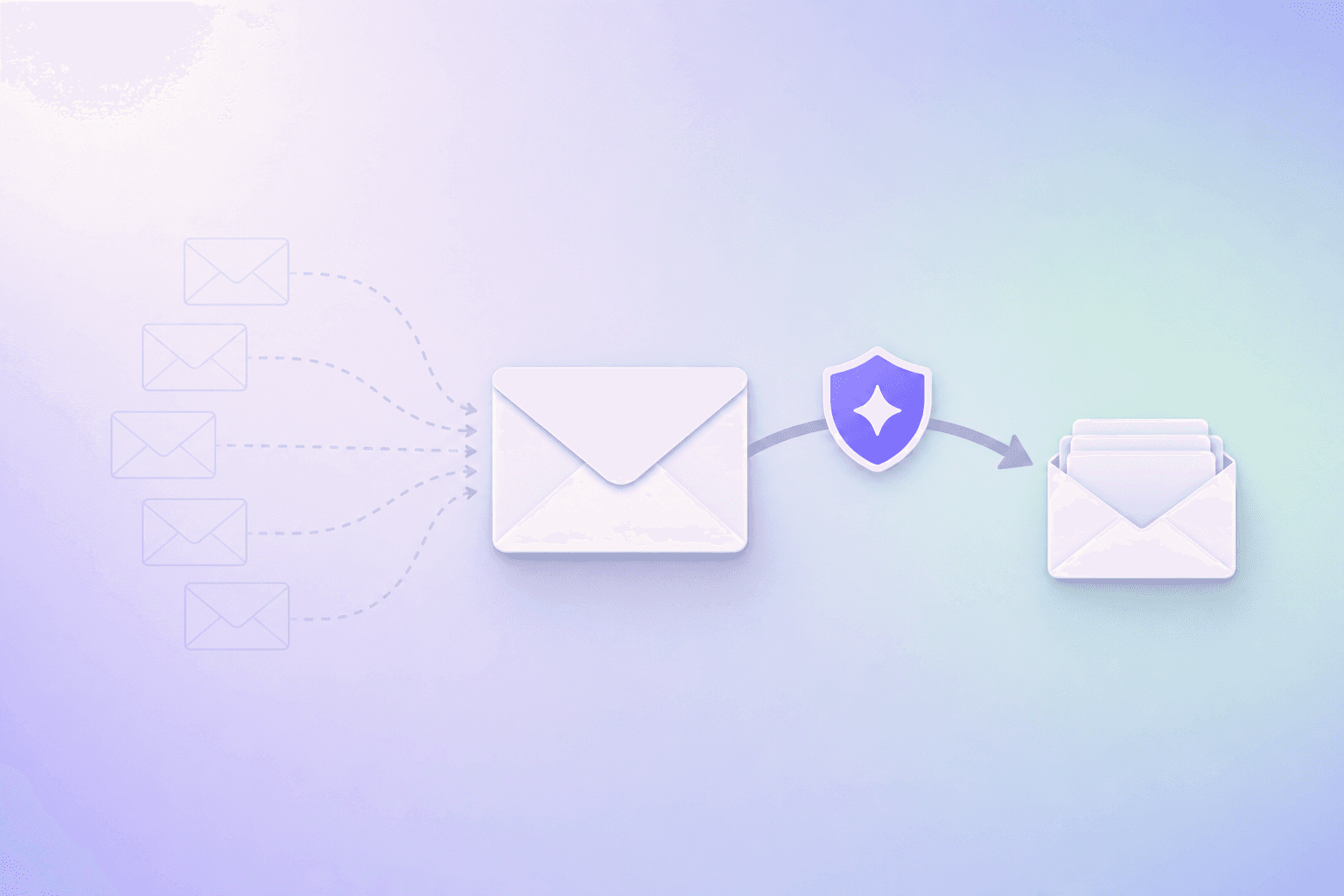
Every time a website asks for your email, you face a trade-off. Hand over your real address and you get access, but you also give that service permanent contact with your inbox. If they get breached, sell your data, or just start sending junk, you are stuck.
Email masking eliminates that trade-off. You give each service a unique forwarding address instead of your real one. Mail flows through to your inbox normally. But the moment a mask becomes a problem, you shut it off without affecting anything else.
This guide walks through the mechanics of how that actually works.
The core idea: a forwarding layer
Think of email masking as a mail-sorting room between the outside world and your real inbox.
Service A → [email protected] ─┐
                                    │
Service B → [email protected] ──┼──→ Your real inbox
                                    │
Service C → [email protected] ─┘
Each service only knows the mask address you gave it. Your real email address never leaves the sorting room. When mail arrives at a mask, the masking service forwards it to your actual inbox in real time. You read and reply from your normal email client.
The critical difference from a regular email address: you control each mask independently. If Service C starts sending spam, you disable mask-c and the noise stops. Services A and B keep forwarding as usual.
Step 1: Creating a mask
When you sign up for a new service, you generate a fresh mask instead of typing your real email. With Maskmail, there are three ways to do this:
In the dashboard. Click "Create mask," give it a label (like "Netflix" or "gym newsletter"), and copy the generated address into the signup form.
With the browser extension. The Maskmail extension for Chrome, Edge, and Brave detects email fields on any page. Click into the field and a popup appears with a ready-to-use mask. One click fills it in and copies it to your clipboard. If you already have a mask for that site, the extension remembers and reuses it.
With a custom domain. Connect your own domain to Maskmail and make up any address on the spot. Signing up for a cooking site? Type [email protected] into the form. It forwards automatically with no setup needed, because Maskmail's catch-all routes every address at your domain to your real inbox. Custom domain masks also bypass blocklists that flag known alias domains like mozmail.com or @duck.com.
Each mask is tied to one service. This isolation is what makes the rest of the system work.
Step 2: Mail forwarding in real time
Once a mask exists, incoming mail follows a simple path:
- A service sends an email to your mask address.
- The masking service receives it and checks whether that mask is active.
- If active, the message forwards to your real inbox within seconds.
- You see it in Gmail, Proton, iCloud, or whatever client you use.
There is no new mailbox to check. No separate app to open. Messages land alongside everything else in your inbox, just like they would if you had given out your real address directly.
The difference is invisible to you day-to-day but matters when something goes wrong. Because the service only has your mask, they cannot reach your real address even if they try.
Step 3: Replying through a mask
Two-way replies are where masking gets clever. When you hit reply on a forwarded message, the response routes back through your mask. The sender sees the mask address in their inbox, never your real one.
The conversation threads naturally on both sides. The sender does not know they are talking to a mask. You do not need to switch to a different app or copy-paste anything. You just reply from your inbox like normal.
This matters for anything that requires ongoing communication: order support, account issues, conversation threads with contacts you do not fully trust. Without two-way replies, a mask is a one-way street that breaks the moment you need to respond.
Step 4: Disabling a mask
This is the payoff. A service sells your data, gets breached, or just sends too much junk. With a regular email address, your options are limited to unsubscribe links (which often do not work) or spam filters (which catch some but not all).
With a mask, you flip one switch. The mask goes inactive. Any future email sent to that address bounces or gets silently dropped. The sender has no way to reach you because they never had your real address to begin with.
Your other masks keep working. Your real inbox stays clean. You have cut off exactly one source of noise without touching anything else.
With Maskmail, this is a one-click kill switch in the dashboard. You can also see your full delivery history to know what arrived, what bounced, and which mask it came from before deciding to disable.
What happens during a data breach
Data breaches are where email masking proves its value most clearly.
Say you used [email protected] for an online store, and that store gets hacked. The attackers now have your mask address. Here is what they can do with it: nothing useful.
They cannot use it to log into your bank, because your bank has a different mask. They cannot use it to reset your passwords elsewhere, because those services have their own masks. They cannot even spam your inbox, because you can disable shop-xyz the moment you hear about the breach.
Compare that to what happens when your real email leaks. Every service, every account, every password reset is now tied to an address that attackers know. Changing your primary email across dozens of accounts is a multi-day project most people never finish.
With masks, breach cleanup takes one click.
How masking differs from plus addressing and aliases
Gmail's plus addressing ([email protected]) looks similar but works differently. Your base address is fully visible to the recipient. Most services strip the +tag portion, meaning they can see and store your real address. And there is no way to disable a specific +tag without affecting your entire inbox.
Apple's Hide My Email generates random addresses, but only works inside Apple's ecosystem. You need an iCloud+ subscription, an Apple device, and Safari. If Gmail is your primary inbox, it does not integrate. For a deeper comparison, see what email masking is and why it matters.
A dedicated masking service works with any email provider, gives you full control over each address, and lets you disable individual masks independently. For a side-by-side look at the major options, the best email alias services for 2026 comparison covers pricing, privacy models, and feature differences.
Who benefits most from email masking
People who sign up for a lot of services. Every new account is a potential spam source. Masking isolates each one so problems stay contained.
Anyone who has been in a data breach. If your email has already leaked (and statistically, it probably has), masking prevents the next breach from compounding the damage.
Privacy-conscious users who still want convenience. Masking does not require switching email providers, learning a new interface, or changing how you read email. It adds a layer of control without adding friction.
Small business owners and freelancers. Custom domain masks look professional ([email protected]) while still giving you the ability to shut off any address that starts attracting junk.
Getting started
Maskmail offers a 14-day free trial with every feature unlocked: unlimited masks, custom domains, two-way replies, browser extension, delivery history, and the one-click kill switch. After the trial, pricing is $0.99/month base plus $0.006 per email forwarded.
There are no feature tiers. You get everything from day one, and you only pay for the volume you actually use.
Frequently Asked Questions
How does email masking work technically?
A masking service receives mail at the mask address you created, checks whether the mask is active, and forwards the message to your real inbox in real time. Your real address is never exposed to the sender. Replies route back through the mask so the conversation stays private on both ends.
Is email masking the same as email aliasing?
They solve the same problem. "Alias" and "mask" both describe a forwarding address that hides your real email. Some services use one term, some the other. The important distinction is between dedicated masking services (which give you full control and a kill switch) and built-in tricks like Gmail's plus addressing (which does not actually hide your address).
Can I use email masking with my existing inbox?
Yes. Dedicated masking services like Maskmail forward to whatever inbox you already use. Gmail, Proton, iCloud, Outlook, Fastmail. You do not need to switch providers or learn a new email app. Messages arrive in your real inbox, and you reply from there.
What happens if I disable a mask?
Any future email sent to that mask address stops reaching your inbox. The sender cannot tell why their messages are not getting through. Your other masks and your real inbox are completely unaffected. You can re-enable a disabled mask at any time if you change your mind.
How many masks can I create?
With Maskmail, there is no limit. You can create as many masks as you need, one per service, one per project, or however you want to organize them. The best email alias services comparison covers how different providers handle alias limits.